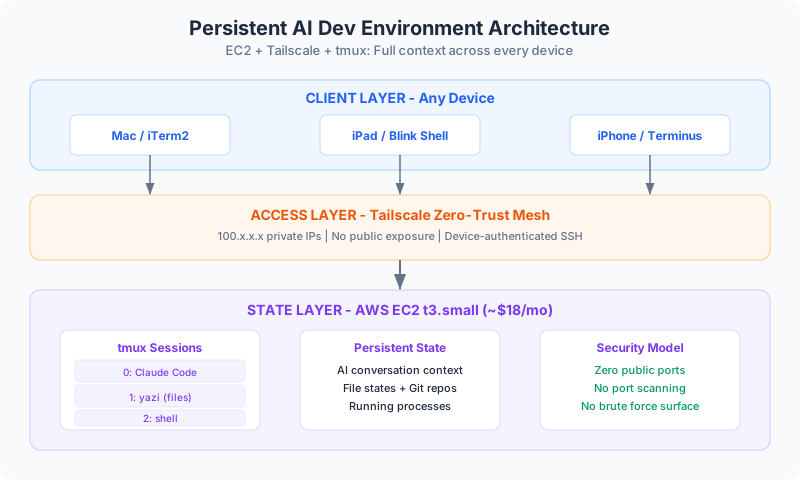
The Stateful Development Shell: Persistent AI Workflows Across Devices
Build a secure multi-device AI development environment using AWS EC2, Tailscale, and tmux. Maintain Claude context across device switches with zero public exposure.
I switch devices constantly. Mac at my desk, iPad on the couch, iPhone when I’m walking. Each switch used to mean losing my Claude Code context, restarting conversations, rebuilding mental state. The AI development environment lived and died with my active device.

This isn’t just inconvenient. It fundamentally limits how we work with AI assistants. Claude Code maintains rich context—project understanding, conversation history, file states, running processes. Close your laptop, that state evaporates. Open it again, you start from scratch.
The traditional solution—sync everything through cloud storage—fails for AI workflows. You can’t Dropbox your way past this. Claude’s context lives in memory. Active processes can’t pause mid-execution. The semantic understanding of your codebase doesn’t serialize to iCloud.
What we need isn’t sync—it’s externalized state: a development environment that persists independently of whatever device you’re touching it from.Not a virtual desktop you remote into. A lightweight shell you access through any terminal, with the AI and its full context running somewhere that never sleeps.
The Canvas: Problem → Solution
Before diving into architecture, let’s map the problem space:
The architecture needs to solve four distinct problems:
- Context persistence - AI state survives device switches
- Security - No public internet exposure for development environment
- Simplicity - Same workflow on every device (Mac, iPad, iPhone)
- Cost - Runs on minimal compute (~$10/month)
The Three-Layer Architecture
The solution separates development state into distinct layers:
State Layer: AWS EC2 t3.small instance running Ubuntu, hosting Claude Code in tmux sessions that persist independently of client connections.
Access Layer: Tailscale mesh network providing zero-trust access without public internet exposure. No ports open to the world.
Client Layer: Lightweight SSH terminals on any device (Mac, iPad, iPhone), using yazi for file navigation and helix for editing.
Why These Tools?
Before diving into setup, let’s understand the tooling choices. Each tool solves a specific constraint in the multi-device workflow.
Why Yazi?
The Problem: Traditional file managers (Finder, Nautilus) require graphical environments. iPad SSH clients are terminal-only.
The Solution: yazi is a terminal file manager with visual preview, fuzzy search, and keyboard navigation. Written in Rust for speed. Works identically on Mac, iPad, and iPhone terminals.
Key Features:
- Image preview in terminal (shows thumbnails via kitty protocol)
- Syntax-highlighted file preview
- Fuzzy finder (hit
/, type filename) - Bulk operations (select multiple files with space, then copy/move)
- Git integration (shows file status in file list)
Alternative Considered: ranger (Python-based) - slower, heavier dependencies. yazi compiles to single binary.
Why Helix?
The Problem: vim/neovim require extensive configuration. VSCode requires graphical environment and doesn’t work over SSH on iPad.
The Solution: helix is a terminal editor with IDE features built-in. No plugins needed. Modal editing like vim, but sane defaults.
Key Features:
- Language Server Protocol (LSP) support out of box (autocomplete, go-to-definition)
- Tree-sitter syntax highlighting (accurate, fast)
- Multiple cursors (select word, hit
Cto add next occurrence) - Selection-first editing (select text, then act - more intuitive than vim)
- Zero configuration (works immediately after install)
Alternative Considered: vim with plugins - works, but requires dotfile sync across devices and plugin installation. helix works immediately.
Why Tailscale?
The Problem: Opening SSH to public internet invites attacks. VPNs are slow and require manual connection. Port forwarding exposes services.
The Solution: Tailscale creates a mesh network. Every device gets a private IP (100.x.x.x). Devices communicate directly, encrypted, without exposing ports to internet.
Security Benefits:
- Zero public exposure - EC2 instance has no public IP routes to SSH
- No port scanning - Port 22 isn’t visible to internet scanners
- No brute force attacks - Can’t attack what you can’t reach
- Device authentication - Only your pre-authorized devices can connect
- No credential theft risk - Even if someone got your SSH key, they can’t reach the server without being on your Tailscale network
Lockdown Mode: Tailscale supports egress rules. EC2 instance can only communicate with devices on your mesh - no outbound internet access. Eliminates data exfiltration risk.
Alternative Considered: Zerotier - similar, but Tailscale has better NAT traversal (works on cellular) and cleaner UI.
State Layer: AWS EC2 t3.small Setup
The core infrastructure runs on a single AWS EC2 instance. Not for deployment—for development. The instance exists only on your Tailscale network, unreachable from public internet.
Instance Specifications
- Instance Type: t3.small (2 vCPU, 2GB RAM)
- OS: Ubuntu 24.04 LTS
- Storage: 30GB gp3 EBS volume
- Cost: ~$15/month (t3.small) + ~$3/month (storage) = $18/month total
- Network: VPC with private subnet only, Tailscale for access
Initial EC2 Setup
-
Launch Instance:
# AWS Console → EC2 → Launch Instance # Name: claude-dev-shell # AMI: Ubuntu Server 24.04 LTS # Instance type: t3.small # Key pair: Create new (download .pem file) # Network: Default VPC # Security group: Allow SSH (22) from your IP temporarily # Storage: 30GB gp3 -
Initial SSH Access (temporary, before Tailscale):
chmod 400 ~/Downloads/claude-dev-shell.pem ssh -i ~/Downloads/claude-dev-shell.pem ubuntu@<public-ip> -
System Updates:
sudo apt update && sudo apt upgrade -y sudo apt install -y build-essential curl git tmux
Tailscale Installation
Install Tailscale first, then lock down security group.
# On EC2 instance
curl -fsSL https://tailscale.com/install.sh | sh
# Authenticate (opens browser, do this on your Mac)
sudo tailscale up
# Get Tailscale IP
tailscale ip -4
# Example output: 100.104.32.15
Enable Lockdown Mode (blocks all non-Tailscale traffic):
# AWS Console → EC2 → Security Groups
# Edit inbound rules: DELETE the SSH rule allowing 0.0.0.0/0
# No inbound rules needed - Tailscale handles it
# Optional: Enable SSH only from Tailscale subnet
# Add rule: SSH (22) from 100.64.0.0/10 (Tailscale CGNAT range)
Now the instance is unreachable from public internet. Only your Tailscale devices can SSH.
Development Environment Setup
Install core tools:
# Rust (for yazi and helix compilation)
curl --proto '=https' --tlsv1.2 -sSf https://sh.rustup.rs | sh
source $HOME/.cargo/env
# Bun (faster than npm)
curl -fsSL https://bun.sh/install | bash
# yazi (terminal file manager)
cargo install --locked yazi-fm
# helix (terminal editor)
git clone https://github.com/helix-editor/helix
cd helix
cargo install --path helix-term --locked
hx --grammar fetch
hx --grammar build
# Add to PATH
echo 'export PATH="$HOME/.cargo/bin:$PATH"' >> ~/.bashrc
source ~/.bashrc
Claude Code Installation
# Install Claude Code via bun
bun install -g claude-code
# Create projects directory
mkdir -p ~/projects
cd ~/projects
# Clone your repos (example)
git clone https://github.com/yourusername/your-project.git
# Set up environment variables
echo 'export ANTHROPIC_API_KEY=your_key_here' >> ~/.bashrc
source ~/.bashrc
tmux Session Management
Create a startup script that launches Claude in a persistent session:
# Create startup script
cat > ~/start-claude.sh << 'EOF'
#!/bin/bash
SESSION="claude"
# Check if session exists
tmux has-session -t $SESSION 2>/dev/null
if [ $? != 0 ]; then
# Create new session with Claude Code
tmux new-session -d -s $SESSION -n main
# Window 0: Claude Code
tmux send-keys -t $SESSION:0 'cd ~/projects && claude-code' C-m
# Window 1: File manager (yazi)
tmux new-window -t $SESSION:1 -n files
tmux send-keys -t $SESSION:1 'yazi ~/projects' C-m
# Window 2: General shell
tmux new-window -t $SESSION:2 -n shell
# Select first window
tmux select-window -t $SESSION:0
fi
# Attach to session
tmux attach-session -t $SESSION
EOF
chmod +x ~/start-claude.sh
Systemd Auto-Start (Optional)
Make Claude Code start on boot:
sudo cat > /etc/systemd/system/claude-dev.service << EOF
[Unit]
Description=Claude Code Development Environment
After=network.target tailscaled.service
[Service]
Type=forking
User=ubuntu
ExecStart=/usr/bin/tmux new-session -d -s claude 'cd /home/ubuntu/projects && claude-code'
Restart=always
RestartSec=10
[Install]
WantedBy=multi-user.target
EOF
sudo systemctl daemon-reload
sudo systemctl enable claude-dev
sudo systemctl start claude-dev
Directory Structure
After setup, your EC2 instance has:
/home/ubuntu/
├── .bashrc # Environment variables
├── .cargo/ # Rust toolchain
├── .config/
│ └── helix/ # Helix editor config
├── projects/ # Your code repositories
│ ├── project-1/
│ ├── project-2/
│ └── .claude/ # Claude Code settings (synced via git)
├── start-claude.sh # tmux startup script
└── .ssh/
└── authorized_keys # SSH keys for access
Access Layer: Tailscale Mesh Network
Security model: zero public exposure. The EC2 instance exists only on my private Tailscale network.
Every device (Mac, iPad, iPhone, EC2 instance) gets a private IP in the 100.x.x.x range. They form a mesh - each device can reach others directly without traversing public internet.
Security Architecture:
This eliminates entire attack surface categories:
- No SSH brute force - Port 22 isn’t exposed to internet
- No service exploitation - Nothing listening publicly
- No credential theft - Can’t use stolen SSH keys without Tailscale access
- No data exfiltration - Outbound internet can be blocked
Client Setup (Mac, iPad, iPhone)
Each device needs Tailscale installed:
Mac:
brew install tailscale
sudo tailscale up
iPad/iPhone:
- Install Tailscale from App Store
- Sign in with same account as EC2 instance
- Enable on-demand connection
Connection from Any Device
Authentication uses SSH keys, not passwords. Tailscale handles network-level auth.
# From Mac
ssh ubuntu@100.104.32.15
# From iPad (Blink Shell)
ssh ubuntu@100.104.32.15
# From iPhone (Terminus)
ssh ubuntu@100.104.32.15
Instant access. No VPN to start, no firewall rules, no port forwarding. Tailscale’s coordination server handles NAT traversal—direct encrypted connection even on cellular.
Advanced: Egress Lockdown
Optional but recommended - block EC2 instance from reaching public internet:
# On EC2 instance
sudo tailscale up --advertise-exit-node --shields-up
# Tailscale admin console → Machines → EC2 instance → Edit → Disable outgoing connections
Now EC2 can only talk to your Tailscale devices. Can’t download malware, can’t exfiltrate data, can’t be used as pivot point.
Tradeoff: Can’t apt update or git clone from GitHub. Must temporarily disable for package installation.
SSH Key Management
Generate and distribute SSH keys:
# On your Mac
ssh-keygen -t ed25519 -f ~/.ssh/claude-dev -C "claude-dev-shell"
# Copy to EC2 instance
ssh-copy-id -i ~/.ssh/claude-dev.pub ubuntu@100.104.32.15
# Test connection
ssh -i ~/.ssh/claude-dev ubuntu@100.104.32.15
For iPad/iPhone, copy private key to device via AirDrop or iCloud Drive, then import into SSH client.
Client Layer: Terminal-First Workflow
Every client device needs exactly one capability: SSH terminal access.
Mac: iTerm2 with native SSH and tmux-aware keybindings iPad: Blink Shell (supports tmux integration, renders yazi correctly) iPhone: Terminus (minimal but functional for quick checks)
Daily Workflow
The workflow is identical across all devices:
- Connect:
ssh ubuntu@<tailscale-ip> - Attach:
~/start-claude.shortmux attach -t claude - Work:
- Window 0: Claude Code conversation (main)
- Window 1: yazi file navigation
- Window 2: Shell for git commands
Switch between windows: Ctrl-b then 0, 1, or 2
tmux Pane Layout
For more complex workflows, split panes within windows:
# In tmux session
Ctrl-b % # Split vertically
Ctrl-b " # Split horizontally
Ctrl-b o # Switch panes
Recommended layout:
┌────────────────────────┬──────────────────────────────────────┐
│ │ │
│ yazi │ Claude Code │
│ File Browser │ AI Conversation │
│ (30% width) │ (70% width) │
│ │ │
│ │ │
└────────────────────────┴──────────────────────────────────────┘
👉 Tip: Split tmux panes intentionally—yazi in vertical split (30% width), Claude in main pane (70% width)—to create a consistent mental model: browse left, work right.
File Operations
Everything happens server-side. Not downloading files to edit locally and re-uploading. Editing in-place on the persistent environment.
yazi shortcuts:
/- Fuzzy search filesSpace- Select multiple filesEnter- Open file in helixdd- Cut filepp- Paste fileyy- Copy file
helix shortcuts:
:w- Save file:q- QuitSpace f- Find file in projectSpace s- Search text in projectmip- Select inside parentheses (powerful selection model)
Git Workflow
Git commits happen from EC2 instance. It’s the source of truth:
# On EC2 instance (any device accessing it)
cd ~/projects/my-app
git add .
git commit -m "feat: implement auth flow"
git push origin main
Local Mac can pull changes if needed, but doesn’t have to. The EC2 environment is authoritative. Local machines are viewing panes, not primary copies.
Device-Specific Tips
iPad Pro:
- Use external keyboard for tmux shortcuts
- Blink Shell supports touch gestures for pane switching
- Enable “Cmd+K” for fzf search in yazi
iPhone:
- Use landscape mode for better visibility
- Terminus supports pinch-to-zoom for small text
- Primarily for checking status, not heavy editing
Mac:
- iTerm2 can save tmux window layout as profile
- Use Cmd+Click to open URLs from Claude output
- Split panes with native iTerm splits for extra screen space
Real-World Usage Patterns
After running this setup for months, here are the patterns that emerged:
Morning: Mac at Desk
SSH into EC2, start Claude Code, review overnight context. Full keyboard, large screen - ideal for deep work and complex refactoring.
Afternoon: iPad on Couch
Same tmux session, now from iPad. Continue conversation mid-context switch. Blink Shell + keyboard makes this feel like native development.
Evening: iPhone Check-In
Quick status check from phone. Scan Claude’s output, verify build completed. Not writing code, but maintaining awareness.
Key Insight
Context persistence changes how you work. Before, device switches meant “find a stopping point.” Now, switch freely - the AI remembers where you were.
Cost Analysis
Total Monthly: ~$18-20
Breakdown:
- EC2 t3.small: $15.18/month
- 30GB gp3 storage: $2.40/month
- Data transfer: ~$1/month (minimal with Tailscale)
- Tailscale: Free tier (20 devices)
Compare to alternatives:
- GitHub Codespaces: $0.18/hour = $130/month for 24/7
- AWS Cloud9: Similar EC2 cost but requires public access
- Local development only: Free, but no multi-device context
Backup Strategy
EC2 instance isn’t a database. If it corrupts, uncommitted work is lost.
Current mitigation: Aggressive git commits. Every meaningful change gets committed immediately.
Better solution: Automated backup to S3:
# Install AWS CLI
sudo apt install awscli
# Create backup script
cat > ~/backup.sh << 'EOF'
#!/bin/bash
cd ~/projects
tar czf /tmp/projects-$(date +%Y%m%d-%H%M%S).tar.gz .
aws s3 cp /tmp/projects-*.tar.gz s3://your-backup-bucket/
rm /tmp/projects-*.tar.gz
EOF
chmod +x ~/backup.sh
# Run every 6 hours via cron
crontab -e
# Add: 0 */6 * * * /home/ubuntu/backup.sh
Known Limitations
Collaboration boundary: This works for solo development. Multiple developers can’t share tmux sessions cleanly (permission conflicts, context pollution).
Solution: One EC2 instance per developer, shared git repository, Tailscale subnet routes for team access.
Mobile editing limits: Helix works on iPad, but complex refactoring is still faster on Mac. Phone is for status checks, not heavy editing.
Solution: Embrace the constraints. Use iPad for continuation work (responding to Claude suggestions, reviewing code). Use Mac for new feature starts.
Latency sensitivity: tmux over cellular has 100-200ms latency. Noticeable but not blocking. Terminal rendering is efficient enough that it still feels responsive.
Solution: WiFi where possible. Cellular works for short sessions.
The Core Insight
AI development state doesn’t belong on your laptop. It belongs in persistent compute you access from anywhere.
Your device becomes a window, not a container:
- Close the window → State remains
- Open from different device → State restored
- Switch mid-conversation → Context preserved
The stateful development shell isn’t about eliminating local development. Your laptop still runs Docker, still compiles code, still serves localhost.
But Claude lives elsewhere, remembering everything, accessible from anywhere you have a terminal.
Getting Started Checklist
Ready to build your own? Here’s the path:
- Launch AWS EC2 t3.small with Ubuntu 24.04
- Install Tailscale on EC2 and all client devices
- Lock down security group (remove public SSH access)
- Install Rust, yazi, helix, bun on EC2
- Install Claude Code globally
- Create tmux startup script
- Test connection from each device (Mac, iPad, iPhone)
- Clone one project repository to EC2
- Start Claude Code in tmux
- Disconnect and reconnect from different device
- Verify context persisted
Start small: One throwaway project. Test full development workflow from phone to discover friction points before committing production work.
Once you experience context surviving a device switch, you won’t want to go back.
Cost-effective, secure, multi-device AI development. ~$18/month. Zero public exposure. Full Claude context across every device you own.