
Voice-to-Text Pipeline: Spokenly + NVIDIA Parakeet Setup Guide
Build a voice-to-text pipeline with Spokenly and NVIDIA Parakeet that turns messy dictation into clean text. Full setup walkthrough.
I type at 80 WPM. I speak at 150. That’s nearly 2x throughput I was leaving on the table because every dictation tool I’d tried produced garbage — filler words, run-on sentences, false starts. By the time I cleaned up the transcript, I’d lost the speed advantage entirely.
So I built a pipeline that fixes this. You speak naturally — with all the “ums” and restarts and thinking-out-loud messiness — and clean, professional text comes out the other end. One pass. No editing. It’s been my default input method for months now.
Here’s exactly how to set it up.
The Stack: What You Need and Why
| Component | Role | Why This One |
|---|---|---|
| Spokenly | Input interface + prompt execution | Cross-platform, works in any app, hotkey activation, runs cleanup prompts natively |
| NVIDIA Parakeet | Speech-to-text engine | Fast, accurate, runs locally — no cloud latency, no privacy concerns |
| Custom Cleanup Prompt | Text polish | Built into Spokenly’s pipeline so transcription and cleanup happen in one step |
The key insight is that Spokenly doesn’t just transcribe — it runs a cleanup prompt on the raw transcription before outputting text. That means you get clean output without a separate editing step. That’s the whole game.
You speak → Parakeet transcribes → Spokenly applies cleanup prompt → Clean text appears at your cursor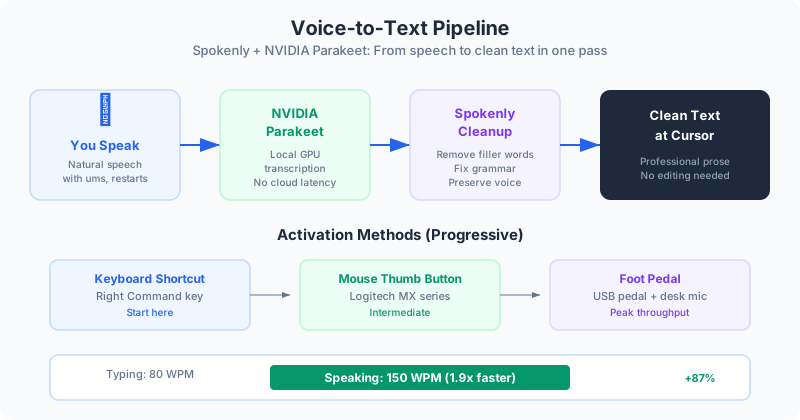
Step 1: Install and Configure the Base Tools
This takes about 10 minutes total.
- Install Spokenly on all your devices
- Configure NVIDIA Parakeet as the transcription engine in Spokenly’s settings
- Assign an activation trigger (I’ll cover options below)
Parakeet runs locally on your GPU, which means no cloud dependency, no latency spikes, and it works offline. If you’re on an NVIDIA card with decent VRAM, transcription is essentially instant.
👉 Tip: Don’t skip the local processing part. Cloud-based transcription adds 500ms-2s of latency per chunk, and that latency destroys the “thinking out loud” flow that makes dictation valuable.
Step 2: Set Up the Cleanup Prompt
This is where the magic happens. Two parts go into Spokenly’s prompt configuration.
System Prompt
You are a transcription editor specializing in cleaning dictated text from busy executives. Your job is to transform raw speech-to-text into polished, readable content while preserving the speaker's authentic voice and intent.

Core principles:
1. PRESERVE VOICE - The speaker's word choices, tone, and style are intentional. Don't sanitize personality or rewrite their language.
2. MINIMAL INTERVENTION - Edit only what's necessary. If it reads fine, leave it alone.
3. MAINTAIN MEANING - Never alter, omit, or soften the substance of what was said.

What to remove:
- Filler words: um, uh, like, you know, basically, actually, kind of, sort of, I mean, right, so yeah
- False starts and self-corrections: "We need to—well actually we should—we need to focus on..."
- Duplicate phrases from thinking out loud: "The key thing is, the key thing is really..."
- Verbal tics and hedging that add no meaning

What to fix:
- Grammar errors introduced by speech-to-text
- Missing or incorrect punctuation
- Run-on sentences (break at natural pause points)
- Obvious misrecognitions from speech-to-text

What to keep:
- Original vocabulary and phrasing
- Technical terms and proper nouns exactly as spoken
- Intentional repetition used for emphasis
- The speaker's natural sentence structure and rhythm
- Strong language if used

Output formatting:
- Clean paragraphs with logical breaks by topic
- Use line breaks between distinct subjects or thoughts
- No headers, bullets, or formatting unless the speaker clearly indicated a list
- Present as continuous prose unless structure is explicitly requested
User Prompt
Clean this dictated text:

{{transcription}}
The {{transcription}} variable gets replaced with Parakeet’s raw output automatically. That’s it — the entire cleanup pipeline runs inside Spokenly on every dictation.
Step 3: Choose Your Activation Method
This matters more than you’d think. The wrong trigger adds just enough friction to kill the habit.
Option A: Right Command Key (Start Here)
Bind Spokenly to right Command. Press to start, press again to stop. Your hands stay on the keyboard. This is the easiest way to validate the workflow before investing in hardware.
Option B: Mouse Thumb Button
If you’re in the Logitech ecosystem, assign a thumb button on your MX mouse via Logi Options+. Distinct tactile feel, easy to reach, no keyboard hand repositioning.
Option C: Foot Pedal (Peak Setup)
USB foot pedal triggers recording. Press with foot, speak, release. Hands never leave the keyboard.
I know it sounds ridiculous. It isn’t. Speaking without any hand involvement changes the cognitive load entirely. You’re thinking and talking, not thinking and operating a device.
My recommended progression:
- Start with keyboard shortcut to validate the workflow
- Move to mouse button if you’re already using an MX mouse
- Graduate to foot pedal + desk mic for maximum throughput
👉 Tip: Whichever method you pick, the key is hold-to-record mode, not toggle. Hold to talk, release to process. It matches the natural rhythm of “I have a thought, let me say it.”
Where This Changes Your Workflow
Coding
Dictate code comments and docstrings. Speak through architecture decisions for documentation. Dictate commit messages and PR descriptions. Explain a bug out loud, paste the clean text into Claude — rubber duck debugging at 150 WPM.
AI Prompting
Complex prompts that would take 5 minutes to type take 90 seconds to speak. Long-context instructions come out more naturally spoken than typed. The cleanup prompt preserves your intent without the verbal messiness.
Communication
Emails at speaking speed. Slack messages without the typing tax. Client communications that sound like you — because they literally are you, just cleaned up. Meeting follow-ups captured while walking to the next meeting.
Documentation
SOPs dictated while doing the work. Strategy docs captured in one pass. Meeting notes spoken immediately after, while everything’s fresh.
Benefits of a clean dictation pipeline:
- 3-4x throughput over typing for anything longer than a sentence
- Ideas that “aren’t worth typing” now get captured — the threshold for documentation drops dramatically
- Zero friction between thought and text means more gets written, period
- Local processing means no privacy concerns with sensitive business content
Calibration Notes
A few things I learned the hard way:
- Speak at normal pace. Parakeet’s accuracy improves with natural speech. Over-enunciating makes it worse.
- Don’t self-edit while speaking. The cleanup prompt handles filler words and restarts. Just think out loud.
- Speak technical terms confidently. Mumbling proper nouns causes misrecognition. Say them clearly once.
- Use the output as-is. If you’re consistently editing output, tune the system prompt rather than fixing individual results. Fix the system, not the instance.
Limitations
It’s not perfect for every situation. Noisy environments degrade accuracy — fine with office background noise, struggles at a loud coffee shop. It’s single-speaker dictation only, not meeting transcription. And specialized vocabulary may need a few corrections early on before Parakeet learns your domain terms.
The Real Point
This isn’t about saving 30 seconds on a Slack message. It’s about removing the barrier between having a thought and getting it into text.
Quick architectural decision? Dictate it, commit. Insight from a client call? Speak it into Slack before you forget. Complex prompt for Claude? Speak the whole thing, paste it in. Strategy doc you’ve been “meaning to write”? Just start talking.
The pipeline is 10 minutes to set up. The throughput gain is permanent.
Continue reading:
Related AI Articles
10 Claude Code Best Practices I Wish Someone Told Me on Day One
Ten practices that transformed Claude Code from a novelty into my primary productivity tool. Each one addresses a mistake I made so you don't have to.
Read moreClaude Code: The Complete Guide (From Install to AI-Powered Workflows)
Everything you need to master Claude Code — install, architecture, agents, hooks, and the spec-driven workflow that changes how you build software.
Read more12 Prompt Frameworks That Turn AI From Toy to Tool
Stop hoping AI understands you. 12 frameworks with real examples for ops, finance, supply chain, and contracts — quick tasks to complex analysis.
Read moreThe Orchestration Economy: Only Thinking Remains
Execution is getting commoditized. The operators who win will be the ones who think deepest about what to automate next.
Read more